
For Xero users with more than one organisation
Consolidate Xero Profit and Loss reports from several organisations
Add one Profit and Loss Excel export per company. Groupfold puts them into one Profit and Loss in your browser, converts other currencies at the rates you type, and checks every company's Net Profit against its file.
Add your Profit and Loss files
Free preview, no sign-up. Your files never leave this browser. Excel download: $19 for 30 days, $11.40 with FOUNDING40 until 30 November 2026.
Add your files
One Profit and Loss export per company, 2 to 10 files, .xlsx or .csv. They are read in this page and not uploaded.
Check the consolidated Profit and Loss
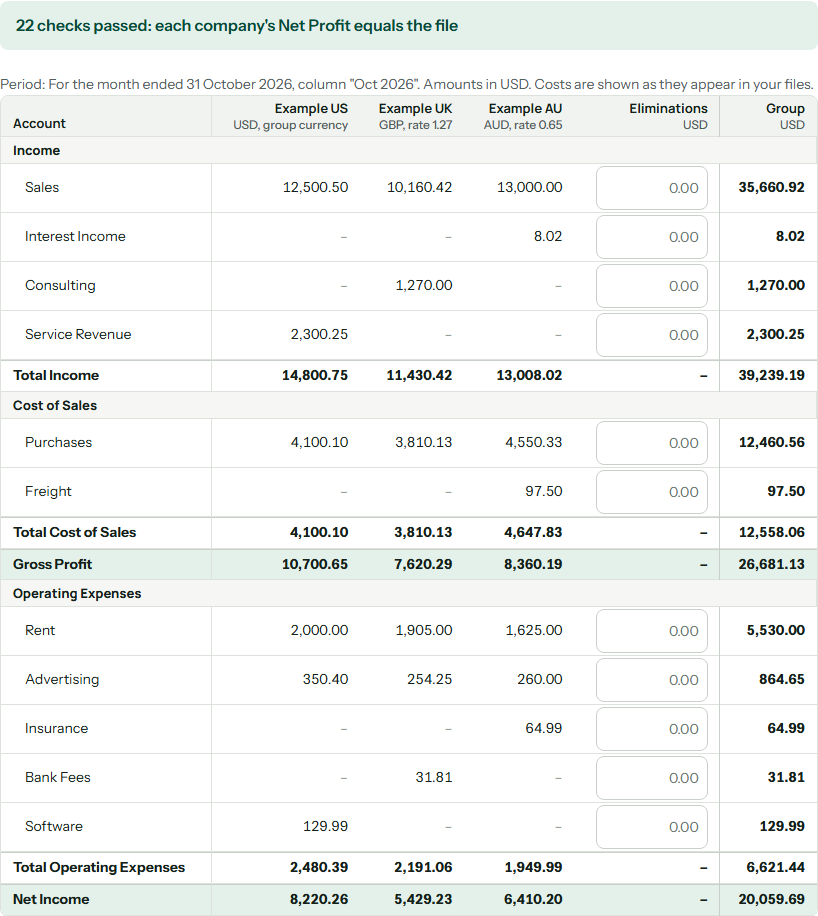
Every change below recalculates this table.
Eliminations: type an amount on any account line. It is added to that line's Group figure exactly as typed, so to take 1,000 off a line type -1000. Groupfold does not find inter-company balances for you.
Checks
Match names that differ
Only needed when companies name sections or accounts differently. Nothing is merged unless you choose it.
Download the Excel file
The preview and the mapping file are free. The Excel download is a 30-day pass that does not renew.
Prices are in US dollars. Paddle adds VAT or sales tax at checkout where it applies. Full refund within 14 days: see the Refunds page.
Your licence key
It was made in this browser before the payment window opened. Only a one-way hash of it goes to Paddle. We cannot show it to you again, so keep a copy.
If you pay in a private or incognito window, the browser deletes the saved key when you close it. Copy the key or download the key file before you close the window.
I already have a key
I lost my key
How it works
- Export from XeroIn each organisation open Reporting > Profit and Loss, choose the same period, then Export > Excel.
- Add the filesDrop them here. Name each company, choose its currency, and type the exchange rate and where it comes from when the currency differs from the group currency.
- Check the previewRead the Group column. Each company's Net Profit is compared with its file. Match accounts that have different names, and type eliminations if you need them.
- Download ExcelOne Excel file with formulas you can audit. The pass costs $19 for 30 days, $11.40 with FOUNDING40 until 30 November 2026.
What it does not do
- No balance sheet or cash flow. Only the Profit and Loss.
- No connection to Xero. You export the files yourself and add them here.
- No exchange rates looked up. You type the rate and its source for each currency.
- No inter-company matching. Eliminations are numbers you type per account line.
- No automatic merging of names. Accounts and sections with different names stay separate until you map them.
- No accounting standard. Groupfold is a management reporting aid. It makes no claim of IFRS 10 or any other compliance, and it is not an audit.
Questions
Are my files uploaded?
No. The files are read and added up inside this web page. The page makes only these requests: its own files, the checkout script of Paddle (loaded when the page opens; the page never gives it your files), an anonymous count of visits and tool uses, the licence check (it sends only your licence key, and only if you have one), the payment window of Paddle if you buy, and the three example files if you press the example button. You can check this in the Network tab of your browser.
Which file do I export from Xero?
In each organisation open Reporting > Profit and Loss, choose the same period for every organisation, then Export > Excel. Add the .xlsx files here without editing them. CSV files of the same report also work.
How do I know the numbers are right?
For every company, Groupfold rebuilds the Net Profit from the account lines and compares it with the Net Profit in your file. It also compares each section total and profit line with the file. If anything differs, the status bar turns red, the line is listed with the difference, and the Excel download stays closed. Amounts are kept in exact cents. Each converted line is rounded to the cent; the small difference from converting the Net Profit as one number is shown as rounding from your rate and is not counted as an error.
What is in the Excel file?
Four sheets: Consolidated, Sources, Mapping and Notes. The totals, profit lines and converted amounts are real Excel formulas, and the exchange rates sit in cells you can change. The Notes sheet lists the rate and the source you wrote for each company, every check, and the rules used to build the numbers.
What if my accounts have different names in different companies?
They stay as separate lines until you map them. The mapping panel lists accounts that exist in only some companies and, where a name looks similar, suggests a match. Nothing is merged until you press Apply. You can download your mapping as a small JSON file and load it next time.
I paid and lost my key. What now?
Open "I lost my key" under the download button and enter the payment reference (it starts with txn_) or the invoice number from your Paddle receipt, plus the e-mail address you paid with. You get a new key for the same 30 days. Write to support@atesensoftware.com if that does not work.
Can I get a refund?
Yes. Within 14 days of payment you can ask for a full refund. How to ask is on the Refunds page linked at the bottom of this page.