How to archive a tracking category in Xero
To archive a tracking category in Xero, delete it. In the Accounting menu, select Accounting settings, click Tracking categories, click the delete icon next to the category, then click Delete. If the category has been used on a transaction, Xero archives it instead of deleting it. A category that was never used is deleted.
Many options to archive? Trackfold, our web app for Xero, archives, restores, deletes or imports many tracking options in one run, with a preview first. The first 3 changed options are free. Start free with Xero
The steps An option that is in use
Archive or delete: Xero decides
Xero has one action for both. Xero Central's article Rename, delete or restore a tracking option or category says to follow the same steps to archive as you use to delete. What happens next depends on whether the category or option has been used.
| The category or option | What Xero does | Can it come back? |
|---|---|---|
| Has been used | Archives it and moves it to the Archived tab. | Yes. Restore it from the Archived tab. |
| Has never been used | Deletes it. | The article describes Restore only for archived ones. |
Archiving does not change your books. In Xero's words, "Archiving a category or option doesn't affect existing transactions." Tracking details still show on transactions that were assigned before the archive, and archived options stay in reports when those transactions fall within the report's date range.
How to archive a tracking category or option in Xero
These are Xero's steps. They are the same for a whole category and for one option inside it.
- Open the settings. In the Accounting menu, select Accounting settings.
- Open the tracking list. Click Tracking categories.
- Pick the category or option. Next to the category or option you want to archive, click the delete icon.
- Confirm. Click Delete. If the category or option has been used somewhere, Xero archives it automatically.
- Check the result. Open the Archived tab. Xero moves archived categories and options there.
Before you start, Xero says to make sure the category or option has been removed from all repeating transactions and repeating manual journals.
Deleting a tracking option that is in use
You cannot. Xero's article says a tracking category or option that is used on transactions can't be deleted and is archived instead. It names what counts as used:
- Transactions. Any transaction the category or option is used on.
- Purchase orders. Those with approved or billed status.
- Quotes. Those with accepted or invoiced status.
- Fixed assets. A registered fixed asset after you have run depreciation, sold it or disposed of it.
To delete the option for good, Xero says to edit the transactions and remove the tracking first. A user with the administrator role can use find and recode to remove tracking from transactions in bulk. That rewrites the transactions, so most people stop at the archive: the option leaves the list you pick from, and the history stays as it was.
Limits to plan around
- Four categories, two active. Xero allows a maximum of four tracking categories, including no more than two active ones. Archived categories count towards the four.
- About 100 options per category. Xero recommends no more than 100 tracking options for each category so that reports load quickly (Set up tracking categories and options).
- One icon per row. The steps describe a delete icon next to each category or option. They describe no way to archive several options at once.
- Restore. On the Archived tab, click Restore next to the option, then choose a single option or all options from that category. Restoring an option from an archived category restores the category too.
Option: Trackfold, for many tracking options at once
Trackfold is a web app for Xero users. It archives, restores, deletes or imports many tracking options in one run. You see every change first and type a confirmation before anything is written, and the changes from a run can be undone for 30 days.
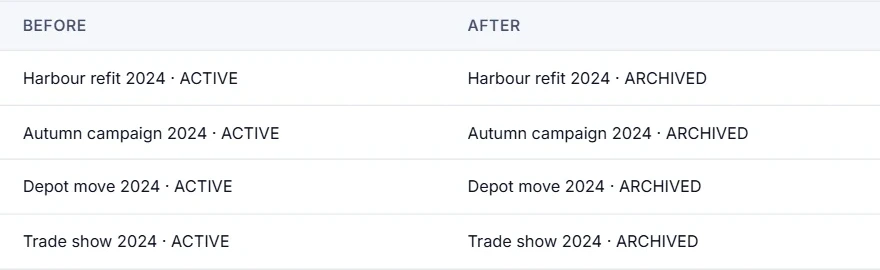
It works on tracking options. To archive a whole category, use Xero's steps above. Trackfold's own guide, Bulk archive tracking options in Xero, walks through a run.
Disclosure. Atesen Software, which publishes this guide, makes Trackfold. Xero's own steps above work without it.
Price. Previews and file checks are unlimited on the free plan, and the first 3 changed options are free, once per organisation. The 7-day pass is $39, a one-off with no renewal, for up to 300 changed options in one organisation. Monthly is $19 per month with unlimited changed options, and you can cancel at any time. Prices are in US dollars and exclude tax; see the pricing page for the current terms.
Which route fits
- One category, or a few options: Xero's delete icon. It costs nothing.
- A category that is over the 100-option recommendation: archive the options you no longer assign, in Xero one by one or with Trackfold in one run.
- An option that must disappear from past transactions too: remove the tracking from those transactions first, then delete the option in Xero.
- Two categories are active and you need a different one: archive one of the two first. The total stays at four, archived ones included.
More Xero clean-up guides: bulk unapprove invoices, find duplicate bills and invoices and importing purchase orders. All of our Xero apps are on the Xero tools page.
Atesen Software is independent. Xero is a trademark of Xero Limited, and this page is not affiliated with or endorsed by Xero. Both Xero Central articles were checked on 15 November 2026; menus and options can change.
Questions about this guide: support@atesensoftware.com.
Questions people ask
How do I archive a tracking category in Xero?
In the Accounting menu, select Accounting settings, then click Tracking categories. Click the delete icon next to the category and click Delete. Xero archives a category that has been used and deletes one that has not. Archived categories are on the Archived tab.
Can I delete a tracking option that is used on invoices?
No. Xero archives a tracking option that is used on transactions instead of deleting it. To delete it, edit the transactions and remove the tracking first. Xero says an administrator can use find and recode to remove tracking in bulk.
What happens to transactions and reports when a tracking option is archived?
Nothing changes on them. Xero says archiving doesn't affect existing transactions. Tracking details still show on transactions assigned before the archive, and archived options stay in reports when those transactions fall within the report's date range.
How many tracking categories can you have in Xero?
A maximum of four, with no more than two active at any time. Each category can have multiple options, and Xero recommends no more than 100 options per category so that reports load quickly.
Can you archive tracking options in bulk in Xero?
Xero's steps archive one category or option at a time, with the delete icon next to it. Trackfold, a separate web app, archives, restores, deletes or imports many tracking options in one run, with a preview first.