Can you bulk unreconcile in Xero?
Yes. In a Xero bank account, open the Account transactions tab, tick the transactions, click More and choose Unmark as Reconciled. Every ticked row is unreconciled in one go, and the transactions and imported statement lines stay. Remove & Redo, the button next to More, deletes the ticked transactions instead. A page shows up to 200 rows.
How to unreconcile several transactions at once in Xero
We tested these steps in the Xero demo company on 14 November 2026. Xero Central describes unreconciling one transaction at a time; the bulk route is in the product.
- Open the bank account. In the Accounting menu, select Bank accounts, then click the name of the bank account.
- Open the Account transactions tab. To list only the rows you want, click Search and set a date range or a status. The Status column shows Unreconciled, Reconciled or Auto-Reconciled.
- Choose how many rows to show. The tab lists 10, 25, 50, 100 or 200 items per page.
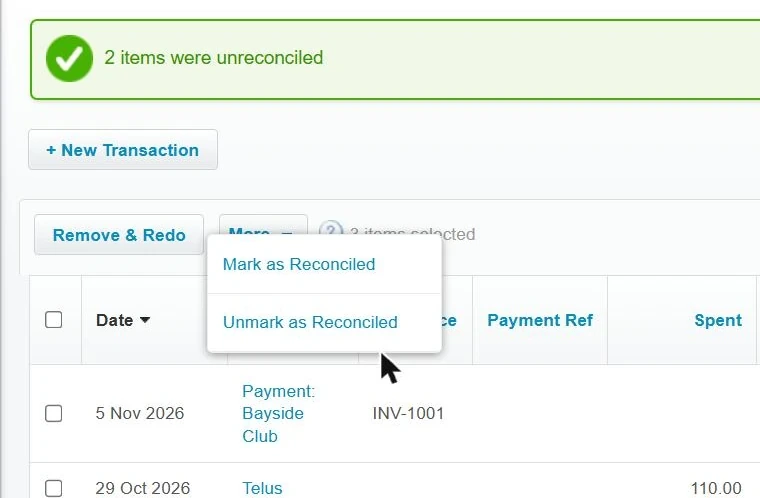
- Tick the transactions. Tick single rows, or the checkbox in the header to select every row on the current page. Xero shows the count, such as "3 items selected".
- Click More, then Unmark as Reconciled. The More menu sits next to the Remove & Redo button and has two items, Mark as Reconciled and Unmark as Reconciled.
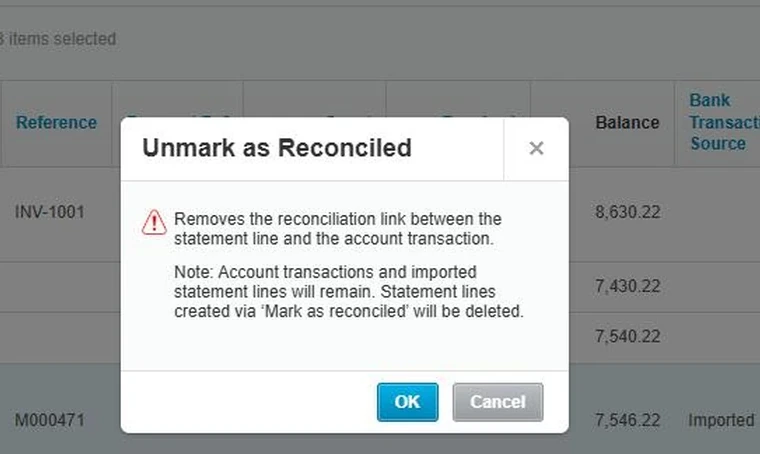
- Read the dialog and click OK. It says the action removes the reconciliation link between the statement line and the account transaction, and that account transactions and imported statement lines will remain.
- Check the result. In our test two Auto-Reconciled transactions changed to Unreconciled together and a green banner said "2 items were unreconciled".
Both statement lines came back to be reconciled: the count on the Reconcile tab went from 71 to 73.
Limits
- One page at a time. The header checkbox selects the rows on the current page, so the practical batch is up to 200 rows. For more, go to the next page and repeat.
- Manually reconciled transactions lose their statement line. The dialog says statement lines created via "Mark as reconciled" will be deleted. Xero Central says the same for a single unreconcile.
- User role. Xero Central says you need the administrator or standard + bank accounts user role to unreconcile an account transaction.
- Not tested. We did not test a transaction dated on or before a lock date, or a bank transfer.
Unreconcile one transaction
This is the route in Xero Central's article Unreconcile an account transaction. Xero describes it for a transaction that was reconciled to the wrong bank statement line.
- In the Accounting menu, select Bank accounts.
- Click the name of the bank account that has the transaction.
- Find and open the reconciled transaction.
- Click Options, then select Unreconcile.
- Click OK.
Both the account transaction and the statement line remain in the bank account, and only the connection between them is removed. The transaction stays on the Account transactions tab and the statement line stays on the Bank statements tab. If the transaction was manually marked as reconciled, Xero deletes the statement line too.
Remove & Redo several at once
Remove & Redo is the other button above the same list. It does more than unreconcile: it deletes the transactions.
- On the Account transactions tab, tick the transactions.
- Click Remove & Redo.
- Read the dialog. With two rows ticked it asked: "Are you sure you want to permanently remove the 2 selected account transactions?" It adds that for reconciled transactions this will not delete any statement lines, that cheques against deleted payments will be marked as voided, and "You can't undo this action."
- Click Yes to delete, or Cancel.
We pressed Cancel, so the result here comes from Xero Central's Delete an account transaction. Xero deletes the account transaction completely, so it is not there to reconcile with another statement line later. The bank statement line stays in the bank account, ready to reconcile with another transaction. Remove & Redo isn't reversible: a transaction removed in error has to be entered again. It needs the same user role.
Unreconcile, Unmark as Reconciled and Remove & Redo compared
| Option | Where it is | One or many | Account transaction | Statement line |
|---|---|---|---|---|
| Options, then Unreconcile | On the open transaction | One | Stays | Stays. Deleted if the transaction was manually marked as reconciled. |
| More, then Unmark as Reconciled | Account transactions tab | Every ticked row, up to 200 per page | Stays | Imported lines stay. Lines created via "Mark as reconciled" are deleted. |
| Remove & Redo | Account transactions tab, or Options on the open transaction | One, or every ticked row | Deleted. It cannot be undone. | Stays |
Rows one and three: Xero Central. Row two and the "every ticked row" cells: the dialogs and the test in the Xero demo company on 14 November 2026.
If the transactions are payments on approved invoices or bills
The two routes leave the invoice in different places.
- Unreconciled only. The payment stays on the invoice or bill. Xero Central says unreconciling keeps the invoice or bill payment, ready to reconcile to the correct statement line (Fix an incorrectly reconciled bank statement line).
- Removed with Remove & Redo. The payment is deleted and the invoice or bill returns to awaiting payment. Xero warns that a payment deleted this way can't be restored (Delete an invoice or bill payment).
After a large Remove & Redo you can be left with hundreds of approved invoices that are awaiting payment again and should not exist, for example after a bad import. Xero voids those one at a time: see how to void multiple approved invoices in Xero at once.
Option: Unapprove, for the invoices
Unapprove is a web app that voids a selected batch of approved sales invoices and bills after a preview, or unapproves them to draft. It does not unreconcile anything: its own guide says it does not touch bank statement lines or reconciliations. Its run that removes payments and then voids skips any document with a reconciled payment, and the guide says to unreconcile those in Xero first, then run again. The bulk steps above are that first step (Unapprove's guide to voiding paid invoices).
Disclosure. Atesen Software, which publishes this guide, makes Unapprove. Everything above this heading works without it.
Price. Preview is free and unlimited. The free trial needs no card and processes 3 documents within 14 days. Monthly is $39 per connected organisation, annual is $290, and the Clean-up Pass is a one-off $49 for 30 days with unlimited documents and no renewal. Prices are in USD and exclude tax. The code FOUNDING40 takes 40% off the first payment until 30 November 2026. See the pricing page for the current plans.
Which route fits
- A match to the wrong statement line: Options, then Unreconcile, on that transaction. If the entry itself is in the wrong account, see how to fix a transaction posted to the wrong bank account in Xero.
- Many wrong matches, with the transactions worth keeping: tick them, then More and Unmark as Reconciled.
- Transactions that should not exist, such as duplicates: Remove & Redo. Xero Central recommends deleting, not unreconciling, a duplicate created during reconciliation. For duplicate invoices or bills, see how to find duplicate invoices and bills in Xero, or scan free with Duplicate Finder.
- Approved invoices left over afterwards: void them by hand or with a batch tool.
Atesen Software is independent and not affiliated with Xero. Xero is a trademark of Xero Limited, and this page is not endorsed by Xero. Menus and options can change.
Questions about this guide: support@atesensoftware.com.
Questions people ask
Can you bulk unreconcile in Xero?
Yes. On the Account transactions tab of a bank account, tick the transactions, click More, then Unmark as Reconciled, and click OK. In the Xero demo company on 14 November 2026 this unreconciled two transactions in one go. A page shows up to 200 rows.
What is the difference between Unreconcile and Remove & Redo?
Unreconcile keeps the account transaction and removes only its link to the statement line. Remove & Redo deletes the account transaction and cannot be undone. In both cases an imported statement line stays in the bank account to be reconciled again.
Does unreconciling delete the transaction?
No. Xero Central says both the account transaction and the statement line remain. The exception is the statement line of a transaction that was manually marked as reconciled: Xero deletes that line.
Why can't I unreconcile a transaction?
Xero Central names one requirement: the administrator or standard + bank accounts user role. Check too that the Status column says Reconciled or Auto-Reconciled. Xero says users can't add or edit transactions dated on or before a lock date; we did not test unreconciling under one.
How do I undo a bank reconciliation for a whole month?
On the Account transactions tab, click Search and set the month as the date range. Show 200 items per page, tick the header checkbox, then click More and Unmark as Reconciled. Repeat for each page. Xero can also delete an entire bank statement, with an option to delete the reconciled transactions too, but a deleted statement can't be restored.
Sources. Xero Central, checked 14 November 2026: Unreconcile an account transaction, Delete an account transaction, Delete an invoice or bill payment, Fix an incorrectly reconciled bank statement line, About the Account transactions tab, Manually mark a transaction as reconciled, Delete a bank statement and Set up or remove lock dates. The bulk steps, the dialog texts, the page sizes and the screenshots: tested in the Xero demo company on 14 November 2026. Unapprove's guide and pricing page were read the same day.