How to view attachments in QuickBooks Online
Open the transaction and select Attachments to see its files. For every file in the company, go to Settings, then Attachments (Add or delete attachments in QuickBooks, checked on 15 November 2026). To see a year of files beside their transactions, Attachment Bundler exports them with a CSV and Excel index.
How to view attachments in QuickBooks Online
Steps 1 to 4 come from Intuit's help article and step 5 from an Intuit Community answer, both checked on 15 November 2026.
- On one transaction. Open the bill, expense, invoice or other transaction and select Attachments to see the files on it.
- On a vendor or customer. For a vendor, go to All apps, then Expenses & Bills, then Vendors, choose the vendor and select the Vendor Details tab, then Attachments. For a customer, go to All apps, then Customer Hub, then Customers & leads, and use the Customer Details tab.
- Every file in the company. Go to Settings and select Attachments. The Attachments list also holds files uploaded without a transaction.
- Work with a file in the list. Choose a file and select Download. The dropdown next to Download offers Edit for the file name and notes, Delete, Create invoice and Create expense.
- See which transactions have a file. On the Expenses or All Sales page, click the small gear icon at the top of the Action column, click Show more and tick Attachments. A column with a paper clip icon appears, and a transaction with a file shows a 1.
Sources: the list and profile steps are in Add or delete attachments in QuickBooks, and the column steps in an Intuit Community answer. Intuit's menus can differ between versions.
What QuickBooks Online accepts as an attachment
Intuit lists the transactions that take attachments: bills, checks, credit card entries, credit memos, delayed charges, estimates, expenses, invoices, received payments, refund receipts, sales receipts and vendor credits, plus customer and vendor profiles. Files cannot be attached to list items such as accounts or employee names, and file names cannot contain special characters.
The supported file types are PDF, JPEG, PNG, DOC, XLSX, CSV, TIFF, GIF and XML.
Where viewing one by one stops
- No attachments report. The Intuit Community answer says QuickBooks does not really have a built-in report that can view transaction attachments.
- One list at a time. The Attachments column shows a count per row on the Expenses or All Sales page. It does not show the file names, and each list is checked on its own.
- The Attachments list shows files, not gaps. A transaction with no file never appears in it. To find those, see how to find transactions with missing receipts in QuickBooks Online.
- A year's worth. For an audit, a tax request or year end, the built-in views mean opening each transaction, or working through the Attachments list and matching each file to its transaction yourself.
Every file beside its transaction: Attachment Bundler
Attachment Bundler is a web app made by Atesen Software for bookkeepers and accountants on QuickBooks Online. You sign in with Intuit, set filters and see the counts before anything is downloaded. It only reads your data and never changes your books.
- Filter first. Transaction date range, transaction type (bills, expenses, invoices, sales receipts and journal entries), vendor, customer or payee name, one or more accounts, and a minimum and maximum amount.
- Counts before downloading. For each type, the free preview shows how many transactions match, how many have attachments, how many files and megabytes that is, and how many have no attachment.
- Named and sorted. Each file is named after its transaction, such as 2025-03-14_Acme Supplies_1250.00_B-1043.pdf, in folders by type and month, by vendor or customer, or flat.
- An index to read. A CSV and an Excel index list every file with its path, its transaction and its status, and also the matching transactions with no attachment.
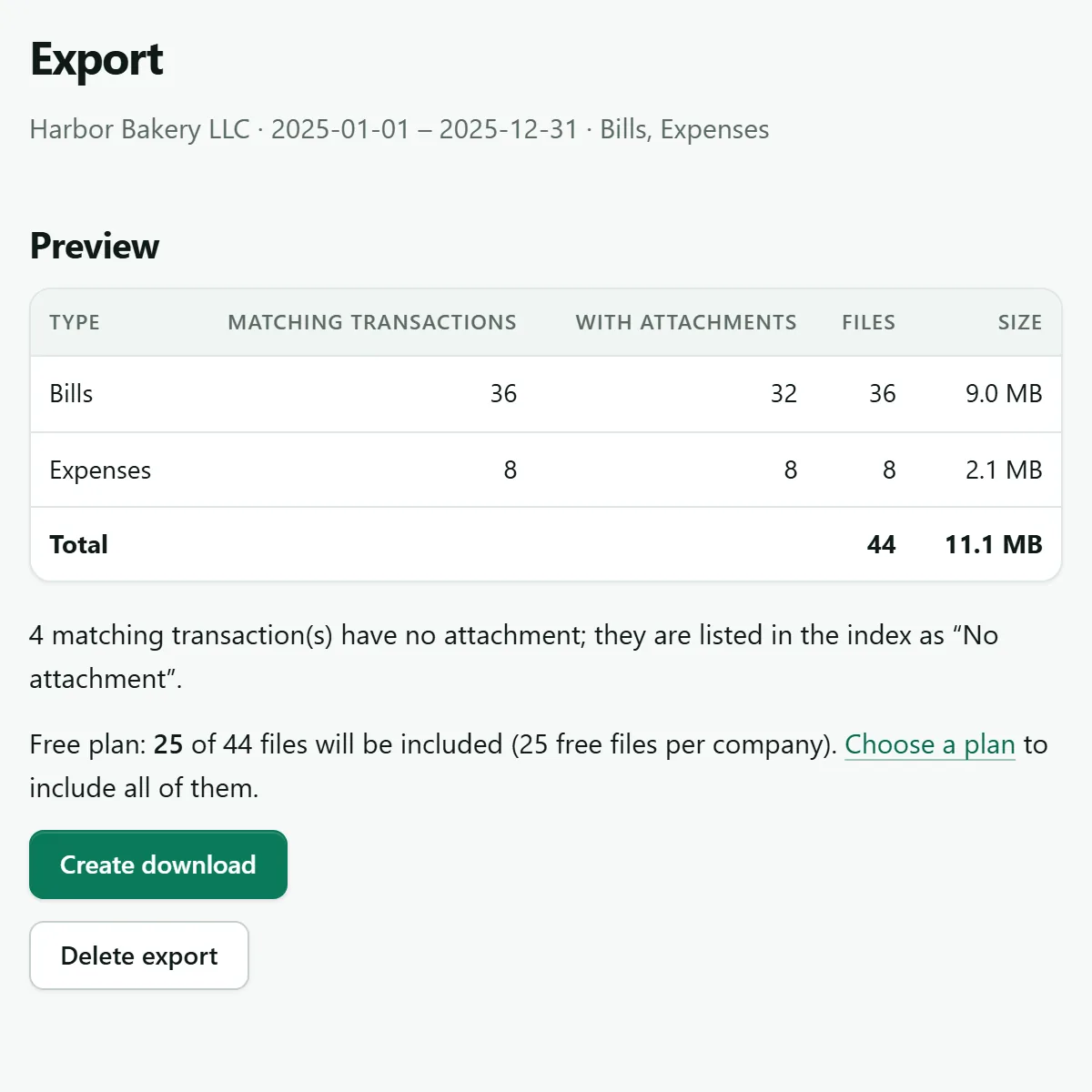
Price. Previews and counts are free and unlimited, and the first 25 files per company are free with the full index. The Year-end Pass is one payment for 30 days with no renewal and no subscription: $29 for up to 250 different files, $49 up to 1,000, $99 up to 5,000, $199 above that, as on the pricing page. Monthly is $19 a month for up to 250 different files a month. Both cover up to 10 companies, with checkout by Paddle.
Good to know. Intuit offers no read-only QuickBooks Online permission, so sign-in asks for its single accounting permission; the app sends read requests only. Vendor credits, bill payments, deposits, estimates and purchase orders are not included, and QuickBooks Desktop is not supported. Files stream to your browser and are never stored. It is not listed in Intuit's app store and has not been certified by Intuit.
About Attachment Bundler Preview your counts on its own site
Which route fits
- One transaction or one customer: open it and select Attachments.
- A file you know by name: the Attachments list under Settings.
- Which expenses or sales have a file: the Attachments column.
- A period, a vendor or an account, with every file named after its transaction and an index: Attachment Bundler.
To download every file rather than view it, see how to download all attachments and receipts from QuickBooks Online, or compare the three ways to export QuickBooks Online attachments.
Atesen Software is independent. QuickBooks and Intuit are trademarks of Intuit Inc., and this page is not affiliated with, sponsored or endorsed by Intuit Inc. Intuit's article and community answer were checked on 15 November 2026; menus can change.
Questions about this guide: support@atesensoftware.com.
Questions people ask
Where are attachments in QuickBooks Online?
On the transaction itself, under Attachments, and all together in the Attachments list: go to Settings and select Attachments. Customer and vendor files are under Attachments on their details tab.
How do I see all attachments in QuickBooks Online?
Go to Settings, then Attachments. The list shows every uploaded file, including files not linked to a transaction, and you can download, edit or delete each one.
Is there a report showing attachments in QuickBooks Online?
Not a built-in one, according to an Intuit Community answer. You can add the Attachments column to the Expenses or All Sales page to see which transactions have a file.
How do I see which transactions have attachments?
On the Expenses or All Sales page, click the gear icon at the top of the Action column, click Show more and tick Attachments. A row with a file shows a 1 under the paper clip.
Can I see attachments with their transaction details in one list?
Attachment Bundler's CSV and Excel index lists every exported file with its transaction and status. Previews and counts are free, the first 25 files per company are free, and the Year-end Pass is $29 once for 30 days and up to 250 different files.