How to split a PDF and rename files based on content
Adobe Acrobat splits a PDF by number of pages, file size or top-level bookmarks, and its output options set a naming convention for the new files. Adobe's help, checked on 15 November 2026, describes no way to name each file from text on its pages. For that, a tool has to read each page, then cut and name.
Acrobat's steps Name files from the page
What a PDF editor can and cannot do
Splitting and naming are two separate jobs. A PDF editor does the first well: you tell it where to cut, by count, size or bookmark. Naming each file after the invoice number, employee number or name printed on its pages needs the editor to read the page and match a pattern, and Adobe's two articles on the subject describe no such option.
| Acrobat tool | Where it cuts | File names |
|---|---|---|
| Split | Every set number of pages, at a file size, or at each top-level bookmark. | A naming convention set in Output options. |
| Extract pages | The pages you select, as one file or one file per page. | You save and name each new file. |
Sources: Adobe's Split PDFs and Extract pages from PDFs articles for Acrobat on desktop.
How to split a PDF in Acrobat
These are the steps in Adobe's Split PDFs article. They cut the file; the names come from the convention you choose, not from the pages.
- Open the tools. Open the PDF and select All tools > Organize pages.
- Choose Split. In the left pane, select Split.
- Choose where to cut. In the Split by menu, choose Number of pages, File Size or Top level bookmarks.
- Set the output. Select Output options and set the destination folder and the naming convention for the new PDFs.
- Run it. Select Split. To split several PDFs the same way, select Split multiple files and add them first.
If every section is the same length, Number of pages gets the cuts right, and you rename the files afterwards. If a bookmark already starts each section, Top level bookmarks cuts there. Adobe's article does not list which naming conventions Output options offers.
Where that stops
- Uneven sections. When one person's pages run to two and the next to one, a fixed page count cuts in the wrong place.
- Names by hand. Each file still has to be opened and renamed after what it contains. For forty files a month, that is forty chances to swap two names.
- Pages in between. Summary or cover pages end up inside someone's file unless you remove them first.
Option: Payslip Drop, for payroll PDFs
Payslip Drop is a free browser tool made for one common case of this job: a payroll run printed as one long PDF. It reads the text of every page on your computer, finds the employee number on each one, cuts one PDF per employee and names each file from a pattern. Splitting and the ZIP download are free and need no account.
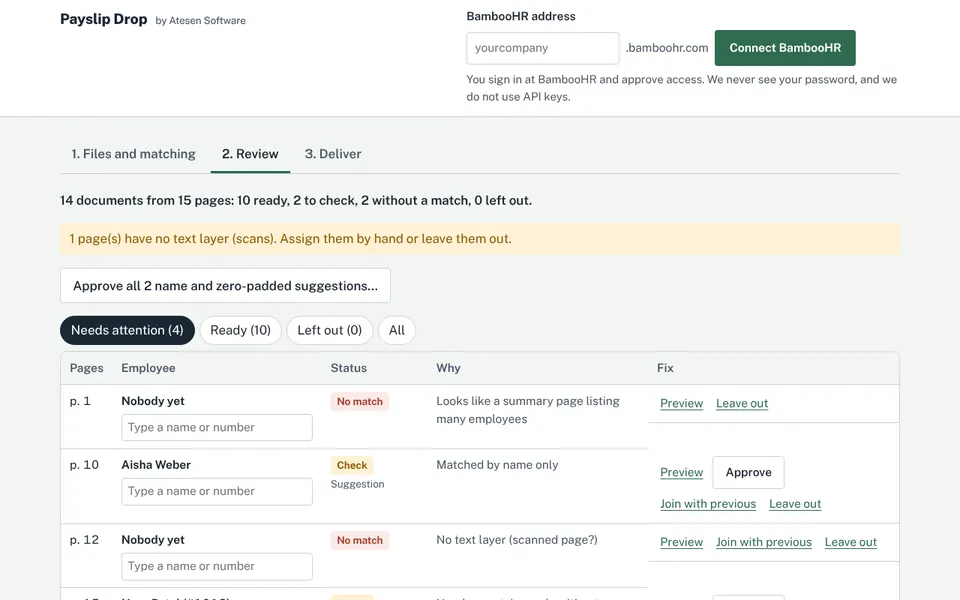
- Read in the browser. The text of every page is read with pdf.js and the files are cut with pdf-lib in the same tab. Splitting and matching never send the PDF anywhere.
- Matched by a labelled number. The number is found after a label such as "Employee ID:" or with your own pattern. Only an exact number is assigned automatically; matches by name, numbers with extra zeros, summary pages and pages without a text layer wait for your decision.
- Names from the page. Every file is named from a pattern such as {employeeNumber}_{lastName}_{period}.pdf, and the ZIP carries a manifest of employee, pages and file name.
- Same settings next month. The label, the name pattern and the folder are saved as a profile per payroll type.
Scanned pages without a text layer are flagged, not read: text recognition (OCR) is not included. It does not calculate payroll or check the numbers. It is built around payslips, so for invoices or contracts the Acrobat route above is the honest answer today. The step-by-step for payroll, including Preview on a Mac, is in split a payroll PDF into one file per employee.
Disclosure. Atesen Software, which publishes this guide, makes Payslip Drop. Acrobat's steps above work without it.
Price. Splitting and the ZIP download are free. Direct upload sends each file to the right employee in your company's HR system after its own OAuth sign-in; the Payslip Drop site names BambooHR. Upload plans are $29, $49 or $79 a month per company, by the number of employees who receive a file, with a 14-day trial for up to 25 employees. Prices are in US dollars; see the pricing for the current terms.
Which route fits
- Sections of equal length, a few files: Acrobat's Split by Number of pages, then rename by hand.
- A bookmark at the start of each section: Acrobat's Split by Top level bookmarks.
- A payroll run where every payslip carries an employee number: Payslip Drop, which cuts at the number and names each file from it.
Other guides on files, exports and naming are on the guides page.
Atesen Software is independent. Adobe and Acrobat are trademarks of Adobe, and BambooHR is a trademark of its owner; this page is not affiliated with, endorsed or supported by Adobe or BambooHR. Both Adobe articles were checked on 15 November 2026; menus can change.
Questions about this guide: support@atesensoftware.com.
Questions people ask
Can Adobe Acrobat split a PDF and name the files from their content?
Acrobat splits by number of pages, file size or top-level bookmarks, and Output options set a naming convention for the new files. Adobe's Split PDFs article describes no option that names a file from text on its pages.
How do I split a PDF into separate files, one per page?
In Acrobat, select All tools, then Organize pages, then Extract pages, and tick Extract pages as separate files. Each page becomes its own PDF, which you then save and name.
How do I split a payroll PDF and name each payslip after the employee?
Use a tool that reads the employee number on each page. Payslip Drop finds the number after a label such as "Employee ID:", cuts one PDF per employee and names each file from a pattern such as {employeeNumber}_{lastName}_{period}.pdf, free in the browser.
Is it safe to split payslips in an online tool?
Check where the file goes. Payslip Drop reads and cuts the PDF in your browser tab, so splitting and matching never send it anywhere, and the tab forgets the files when it closes.
Does it work with scanned PDFs?
Not for automatic matching. Pages without a text layer are flagged for you to assign by hand, because text recognition (OCR) is not included.