Connects to Asana
How to convert an Asana single-select field to multi-select
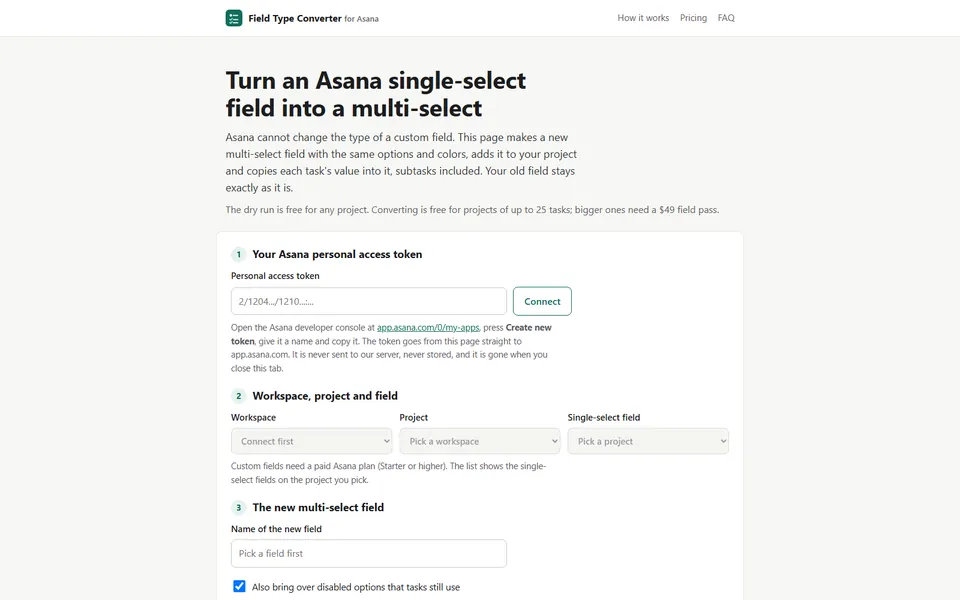
Asana cannot change the type of a custom field, so a single-select field cannot be switched to multi-select. The way through is a new multi-select field with the same options, added to the project, with each task's value copied across. You can do that by hand in Asana, or let Field Type Converter for Asana do it after a free dry run. The old field stays as it is either way.
Why Asana cannot change a custom field's type
A custom field in Asana gets its type when it is created: single-select, multi-select, text, number, date or people. After that you can rename the field and edit its options, but the type is fixed. Asana's API reference says the same thing in one line. Under Update a custom field it states that a custom field's type cannot be updated.
That hurts most with single-select fields. A field such as Team, Channel or Region starts with one answer per task, and later a task belongs to two. Multi-select fields exist for that, but only for fields created as multi-select.
Asana users have asked for a conversion since multi-select arrived. The Asana Forum thread Convert existing single-select field to multi-select was opened on 27 October 2021 and has more than 100 replies. Replies describe the cost: every task that used the old field has to be updated by hand. Both pages were checked on 15 November 2026; Asana can change this at any time.
The manual way in Asana
- Create the new field. Add a multi-select custom field to the project and type in every option again, in the same order, picking the same colors. Field names must be unique in a workspace, so the new field needs a different name while the old one exists.
- Copy the values. Sort or filter the project by the old field, select the tasks that share an option and set that option in the new field. Repeat for every option.
- Do the subtasks. Subtasks sit under their parent tasks, so open each parent and set the new field on every subtask that carries the old one.
How to change the field type with a new field
- Connect Asana. Open Field Type Converter for Asana and sign in on Asana's own page, or paste a personal access token from the Asana developer console. The token goes from the page straight to app.asana.com.
- Pick the workspace, project and field. The list shows the single-select fields on the project you pick. Custom fields need a paid Asana plan.
- Name the new field. It cannot have the old name while the old field exists. You can rename both in Asana later.
- Run the dry run. The page reads every task in the project and every subtask below them, down to ten levels, and counts how many have each option. Nothing is written.
- Confirm the conversion. It creates a multi-select field with the old field's enabled options, in the same order and with the same colors, adds it to the project and gives each task the matching option. A task with no value stays empty.
- Read the report. You see how many values were copied, how many tasks were empty and which tasks failed and why, and you can download the log as a CSV file. If some tasks failed, run it again: only the tasks that are still empty are filled.
- Switch what uses the field. Rules, forms, reports, dashboards, saved searches and integrations keep using the old field. Point them at the new field by hand, then remove the old field from the project when you are happy.
Field Type Converter for Asana, for the copy
Field Type Converter for Asana is a web app that turns an Asana single-select field into a multi-select one by making the new field and copying every value, subtasks included. It runs in your browser.
- The old field is never changed or deleted. Its values stay where they are, so nothing is lost if you change your mind.
- Completed tasks are included. A task that sits in several projects is filled once, and a task whose new field already has a value is left alone.
- Undo is free. It clears the new field wherever it holds the value copied from the old field, and leaves any value someone changed by hand.
- What it does not do. It does not switch your rules, forms or reports to the new field, and it converts single-select to multi-select only.
Disclosure. Atesen Software, which publishes this guide, makes Field Type Converter for Asana. The manual way above needs nothing from us.
Price. The dry run is free for any project of any size, and converting is free for projects of up to 25 tasks, subtasks counted. The field pass is $49, one payment, for unlimited conversions in one Asana workspace for 30 days, with no subscription; the key works for the first workspace you use it with. Prices are in US dollars; Paddle adds or includes local VAT or GST at checkout, and a payment is fully refundable within 14 days.
Which route fits
- A small project with a few options: make the new field and copy the values by hand.
- You only want to see how big the job is: the free dry run counts every task and subtask per option.
- A large project, or one with nested subtasks: let Field Type Converter for Asana create the field and copy the values.
Atesen Software is independent. Asana is a trademark of Asana, Inc., and this page is not affiliated with, endorsed or sponsored by Asana.
Questions about this guide: support@atesensoftware.com.
Questions people ask
Can I change a custom field's type in Asana?
No. Asana's API reference states that a custom field's type cannot be updated. You create a new field of the type you want and move the values to it.
How do I convert a single-select field to multi-select in Asana?
Create a multi-select field with the same options, add it to the project and copy each task's value into it, subtasks included. Field Type Converter for Asana does this after a free dry run.
Does the conversion delete my old field?
No. The old field and its values are never changed or deleted. You remove it from the project yourself when you no longer need it.
Do my rules, forms and reports move to the new field?
No. They keep using the old field until you point them at the new one by hand in Asana.