Connects to ClickUp
How to update existing ClickUp tasks from a CSV
ClickUp's Spreadsheets Importer turns each row of a file into a task, so importing an edited export gives you a second copy of every task instead of an update. To change tasks you already have, use the Bulk Action Toolbar when every task gets the same value, or CSV Updater for ClickUp when each row has its own values: it matches rows by Task ID and shows every change before anything is sent.
Why importing the edited export does not update anything
The usual plan is simple: export a List, fix dates, statuses and owners in Excel or Google Sheets, then put the file back. The export half works. ClickUp writes a CSV that has a Task ID column next to the task name, status, dates, assignees and priority; its Export task data article lists what is included.
The import half does not do the reverse. In ClickUp's Use the Spreadsheets Importer article, each row of the spreadsheet represents a task and each column a field of that task. You pick a Space, Folder or List as the destination and map the columns, but there is no step that matches a row to a task that is already there. The rows arrive as new tasks, and the old ones keep their old values.
People have asked ClickUp for the missing half for years. The request "Ability to export a List and then re-upload into that same List with updated data (bulk update tasks by import)" on ClickUp's feedback board was opened on 22 May 2019 and has about 1,400 votes and more than 200 comments. All three pages were checked on 15 November 2026; menus and limits can change.
What ClickUp can do by itself
- The same value on many tasks. Select the tasks in a List or Table view and use the Bulk Action Toolbar to set a status, assignees, a priority, dates or a Custom Field on all of them. ClickUp's Bulk Action Toolbar article says up to 1,000 tasks can be updated at once.
- A different value on each task. Type them into the Table view cell by cell. That is fine for twenty tasks and slow for two thousand.
- Import again. This creates the tasks a second time. You then have to delete one set.
How to bulk edit ClickUp tasks from a CSV file
- Export the List. In ClickUp, open the List or Table view, click Customize, then Export, and pick All columns and CSV. Keep the Task ID column. To include subtasks, set Subtasks to "As separate tasks" before you export.
- Edit the file. Change the cells you want in Excel or Google Sheets and save it as CSV again. Columns you did not change are left alone, and an empty cell leaves its field alone unless you type (empty) to clear it.
- Get your API token. In ClickUp, click your avatar, then Settings, then Apps, and generate or copy the token under API Token.
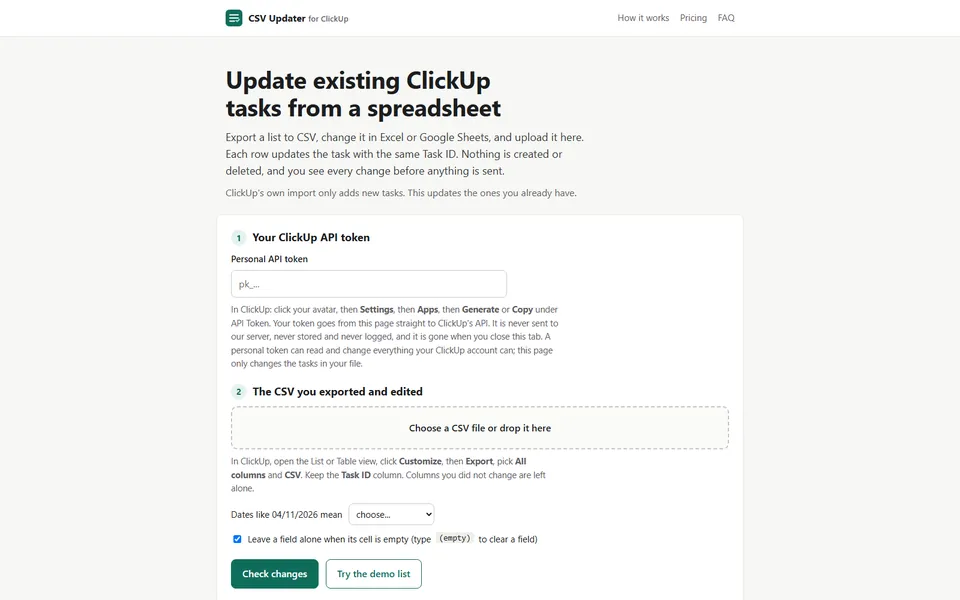
- Check the changes. Open CSV Updater for ClickUp, paste the token, choose the file and press Check changes. Each row is compared with the task that has the same Task ID, and you see every field that would change. A row with a problem, such as a status that does not exist in that task's List, is shown in red and skipped as a whole.
- Apply. Only the fields whose value in your file differs from ClickUp are sent. Nothing is created and nothing is deleted.
- Keep the undo file. The page keeps the previous value of every field it changed. Download it as an undo CSV, or press Undo this run to put the old values back after seeing the changes first.
CSV Updater for ClickUp, for the update
CSV Updater for ClickUp is a web app that updates existing ClickUp tasks from an edited CSV export. It runs in your browser and works with a List or Table view export or the Workspace task data export.
- What it updates. Task Name, Status, Due Date, Start Date, Priority and Assignees, and Custom Fields by column name: text, long text, e-mail, URL, phone, number, money, dropdown, date and checkbox.
- What it does not update yet. Labels, people fields, ratings, relationships, files, formulas, tags, comments, checklists and time tracking. These columns are shown as skipped.
- Where your token goes. From the page straight to api.clickup.com. It is never sent to our server, never stored and never logged, and the file is read inside the page. A personal token can read and change everything your ClickUp account can; the page only changes the tasks in your file.
Disclosure. Atesen Software, which publishes this guide, makes CSV Updater for ClickUp. The Bulk Action Toolbar above needs nothing from us.
Price. Checking changes is always free, for any number of rows, and the first 25 task updates are free. The 30-day pass is $19, one payment for unlimited task updates for 30 days, with no subscription and no renewal. Prices are in US dollars; Paddle adds or includes local VAT or GST at checkout, and a payment is refundable within 14 days.
Which route fits
- One status, owner or date for a whole selection: the Bulk Action Toolbar in ClickUp.
- A handful of tasks with different values: type them into the Table view.
- Hundreds of tasks, each with its own values from a spreadsheet: export, edit and update by Task ID with CSV Updater for ClickUp.
- New tasks from a file: ClickUp's Spreadsheets Importer, which is what it is built for.
Atesen Software is independent. ClickUp is a trademark of Mango Technologies, Inc., and this page is not affiliated with, endorsed or sponsored by ClickUp.
Questions about this guide: support@atesensoftware.com.
Questions people ask
Can a ClickUp CSV import update existing tasks instead of creating new ones?
No. In ClickUp's Spreadsheets Importer each row of the file becomes a task, so an edited export comes back as new tasks. The request to update by import has been open on ClickUp's feedback board since May 2019.
How do I bulk edit ClickUp tasks from a CSV?
Export the List with its Task ID column, edit the file, then upload it to CSV Updater for ClickUp. Each row updates the task with the same Task ID, after you have seen every change.
Will it create or delete tasks?
No. Nothing is created or deleted. Only the fields whose value in your file differs from ClickUp are changed, and tasks that are not in the file stay as they are.
Can I undo an update?
Yes. The page keeps the previous value of every field it changed. Download the undo CSV, or press Undo this run to put the old values back.