Connects to Xero
ServiceM8 invoices in Xero: fix, send or void them in bulk
ServiceM8 sends an invoice to Xero when you approve the job on its Invoicing page, as Awaiting Approval unless you set it to Approved. After that, ServiceM8 updates the Xero invoice only until a payment or credit note is allocated in Xero. A batch that went across wrong is fixed in Xero, and Unapprove handles the approved ones in bulk (How the sync with Xero works, checked on 15 November 2026).
How ServiceM8 sends invoices to Xero
These points come from ServiceM8's own help centre, checked on 15 November 2026.
- When it sends. A completed job appears under Invoicing, in the Awaiting Approval tab. The invoice goes to Xero when you approve it there, in the online dashboard or the mobile app. Invoices worth zero are not sent.
- Which status. By default the invoice lands in Xero as Awaiting Approval. Under Settings, Invoicing, in the Xero section, you can make Approved the default instead (draft or approved?).
- Later changes. A change in ServiceM8 that alters the total re-syncs the line items to Xero, but only while the Xero invoice has no payment or credit note allocated. After that, ServiceM8 says to manage changes in Xero.
- One way only. Invoices created in Xero are not sent to ServiceM8. Payments recorded in Xero against a ServiceM8 invoice come back within 30 minutes.
- Number clashes. The invoice number must be unique in Xero. If it is taken, ServiceM8 adds a letter and sends again, so job 4899 becomes 4899A (Resolving Xero invoice number conflicts).
How to fix a batch that went to Xero wrong
- Find the batch in Xero. In Invoices, open All and Search, tick Include Deleted & Voided, and search by number, reference, contact or amount, so you see every number in use.
- Sort them by status. Awaiting Approval invoices can still be edited or deleted in Xero. Approved invoices (Awaiting Payment or Paid) cannot go back to draft in Xero: can you unapprove an invoice in Xero explains why.
- Correct small things in ServiceM8 first. While no payment is allocated, a change in ServiceM8 that alters the total updates the Xero invoice for you.
- Redo or void the approved ones in Xero. For a batch that needs fresh drafts with the same numbers, or should not exist at all, use a bulk route instead of opening each invoice.
- Re-send with a clean number. ServiceM8 suggests renaming a voided or deleted invoice in Xero first (for example 102void), so a re-sync keeps 102 instead of becoming 102A.
Option: Unapprove, for approved ServiceM8 invoices
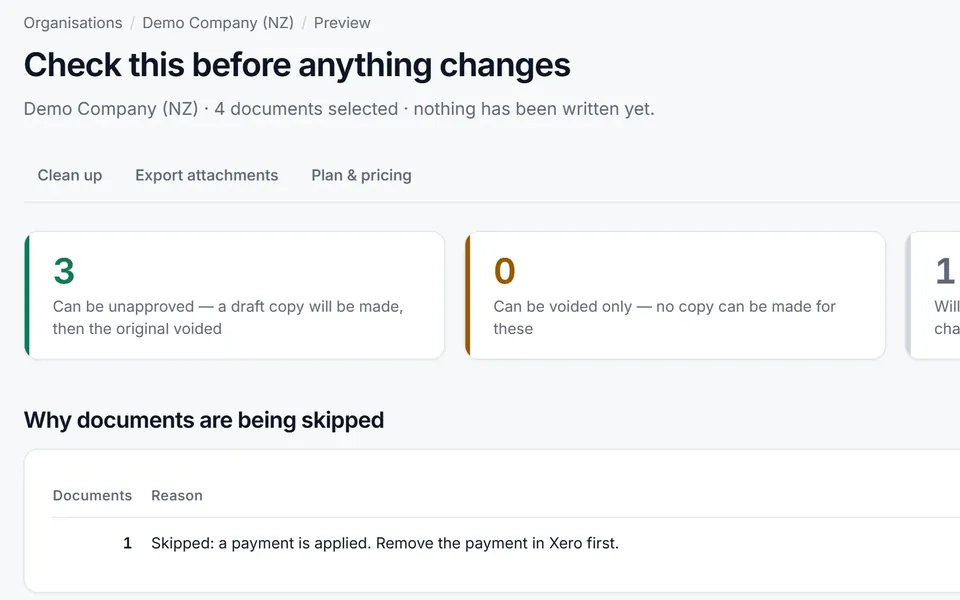
Unapprove is a web app for Xero users who need to put many approved invoices and bills right at once. You approve access on Xero's own page, filter and select the documents, and see a preview of every result before anything changes.
- Unapprove to draft. It creates a separate draft copy before the original is touched, renames the original with a -V suffix and voids it. Eligible draft copies take over the original number.
- Void only. A void-only run for invoices that should not exist.
- Paid invoices. A separate run removes payments and credit note allocations, then voids. Reconciled and batch payments are never touched.
- Duplicates. The free Duplicate Finder lists invoices that look like copies, such as a job sent twice, and only reads.
On a regular run, documents with a payment, an allocated credit note or a date in a locked period are skipped and listed with the reason.
Disclosure. Atesen Software, which publishes this guide, makes Unapprove. The steps above work without it.
Price. Preview is free. The free trial costs $0, needs no card and processes 3 documents within 14 days. Monthly is $39 per connected organisation, or $290 a year. The 30-day Clean-up Pass is one-off: $49 up to 1,000 documents, $99 up to 5,000, $199 above that. Prices exclude VAT or sales tax, which Paddle adds at checkout.
Which route fits
- A few invoices with no payment yet: correct the job in ServiceM8 and let it re-sync.
- Awaiting Approval invoices you want sent: Sendtide approves and emails a checked batch.
- Approved invoices that need fresh drafts: how to bulk unapprove invoices in Xero.
- Approved invoices that should not exist: how to void multiple approved invoices in Xero at once.
- Payments taken outside ServiceM8: Paysweep records them from a CSV or Excel file.
- Only the due dates are wrong: changing due dates in bulk.
Atesen Software is independent. Xero is a trademark of Xero Limited, and this page is not affiliated with or endorsed by Xero. ServiceM8 is a trademark of its owner and does not endorse this page either. The ServiceM8 help centre was checked on 15 November 2026; menus and options can change.
Questions about this guide: support@atesensoftware.com.
Questions people ask
Does ServiceM8 send invoices to Xero as draft or approved?
As Awaiting Approval by default. You can change the default to Approved under Settings, Invoicing, in the Xero section.
If I change an invoice in ServiceM8, does Xero update?
Yes, if the change alters the total and the Xero invoice has no payment or credit note allocated. After an allocation, make the change in Xero.
Why did my ServiceM8 invoice number get a letter in Xero?
The number was already used in Xero, so ServiceM8 added a letter, for example 4899A. Rename the old Xero invoice before you approve the job to keep the original number.
How do I fix many approved ServiceM8 invoices in Xero at once?
Xero edits them one at a time. Unapprove makes draft copies of a selected batch and voids the originals after a free preview, for $39 a month per organisation or a 30-day Clean-up Pass from $49 once, for up to 1,000 documents.