Connects to Jira Service Management
How to import customers into Jira Service Management from a CSV
Jira Service Management Cloud adds customers in bulk from a service space's Customers page: select Add customers and paste emails separated by commas or semicolons, including data copied from a CSV. Each invite emails the customer. Organizations are filled separately, by adding customers to each organization by email or username.
Importing customers and organizations from one CSV? See Atesen Customer Import
The built-in steps Where they stop
How to add customers in bulk to a service space
These steps are from Atlassian's article Add customers in bulk to your service space.
- Open the service space. Log into your Atlassian Cloud site, go to Spaces and select the space.
- Open Customers. Select Customers, then Add Customers.
- Paste the emails. Enter as many emails as you need, separated by commas or semicolons. If you have a CSV file, you can paste its data into the invite window.
- Send. Select Enter. The invite emails the customers and asks them to complete their account setup to access your space.
- Check the list. Reload the page if the customers do not appear on the Customers page.
Atlassian says there is no limit on the number of customers you can add to a space, and recommends adding a large number in batches. With Atlassian Guard Standard you can instead provision internal customers, such as employees, from your identity provider.
Add the customers to organizations
Atlassian's article Add a customer to an organization gives two routes:
- From the space. Select Customers, open the Organizations tab, choose an organization, select Add customers, enter usernames or emails separated by commas, then select Add.
- From Jira settings. Jira administrators can select Settings, Products, Organizations, choose an organization and add customers by email the same way.
Customers added to an organization are added to every project the organization is attached to. Agents can manage organizations only if an administrator allows it in the service management configuration. The article applies to company-managed spaces.
Where the built-in route stops
- One column only. The invite window takes emails. A name column and an organization column in your CSV have no place to go.
- One organization at a time. A file of 300 rows across 40 companies means 40 organizations opened and filled by hand, after creating any that do not exist.
- Invites go out. The bulk add emails every customer. That is not always what you want during a migration.
- No check before, no report after. The steps describe no preview of invalid or duplicate emails and no list of which rows worked.
Option: Atesen Customer Import for Jira Service Management
Disclosure. Atesen Software, which publishes this guide, makes Atesen Customer Import, an Atlassian Forge app listed on the Atlassian Marketplace since 5 November 2026. The steps above work without it.
- Upload one CSV. Plain-text UTF-8 with a header row, comma or semicolon separated, up to 10,000 data rows per job. Map the email column and, if you want them, a name column and an organizations column; several organizations in one cell are separated with ; or |.
- Choose what to create. Missing organizations are created while the option is on, the default. Tick the service spaces that should receive the customers, and the mapped organizations are added to them too.
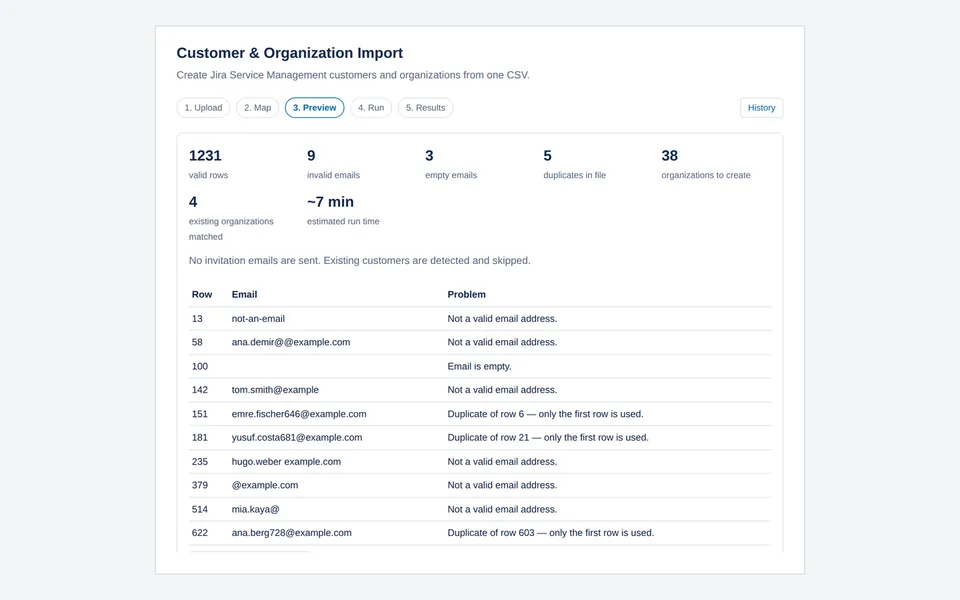
- Preview. Valid rows, empty and invalid emails, duplicates in the file with row numbers, organizations that matched and organizations to create. Nothing is written; download the errors CSV, fix the file and upload it again.
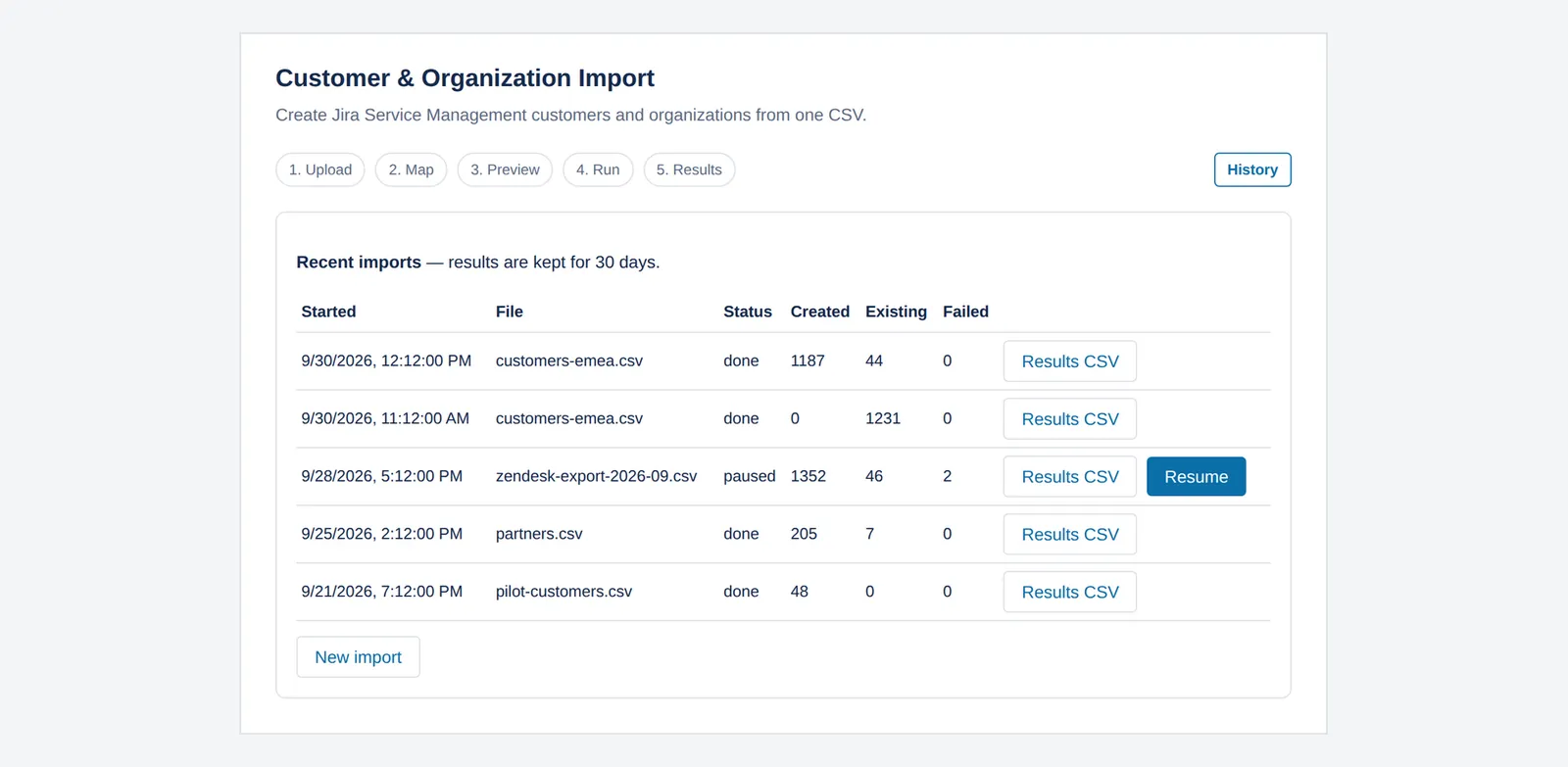
- Run it. The job runs in the background: close the tab and come back to History, pause it and resume it. Existing customer accounts are reused and still get their memberships and service-space access.
- Check every row. The results CSV gives each row's status (created, existing, partly done, failed or retryable) with an error code and message.
What it looks like in Atesen Customer Import for Jira Service Management
Limits. It needs the Jira Administrators global permission and opens from Jira Settings, Apps. It sends no invitation emails. It has no undo: it does not delete customers or organizations, remove memberships or merge duplicate organizations, and a name in the CSV is used only for new customers. Excel workbooks and tab-separated files are not supported. Jira rate limits can slow or pause a job, and no completion time is guaranteed. Customer Service Management profiles are not managed. Job data stays in Forge storage for 30 days.
Price. Atlassian sells and bills it through the Marketplace, and imports need an active licence or the trial Atlassian offers. On 15 November 2026 the listing priced the monthly plan at $6 a month for the 10-user tier; larger sites pay per user, and the listing's Pricing tab shows the price for your user tier.
See Customer Import on the Marketplace About the app Documentation
Which route fits
- A list of emails and you want each person invited: paste them into Add customers.
- Employees who already sit in your identity provider: provision them with Atlassian Guard Standard.
- A CSV with names and organizations, a preview first and no invitation emails: an app such as Atesen Customer Import.
Once customers sit in organizations, read how to add organization or group members as request participants. For a bulk change on the requests themselves, read the Jira bulk change permission in Jira Service Management.
Atesen Software is independent. Atlassian, Jira and Jira Service Management are trademarks of Atlassian, and this page is not affiliated with or endorsed by Atlassian. The Atlassian articles and the Marketplace price were checked on 15 November 2026; menus and options can change.
Questions about this guide: support@atesensoftware.com.
Questions people ask
Can you import customers into Jira Service Management from a CSV?
Partly. On a service space's Customers page, select Add customers and paste the email addresses, including data copied from a CSV file. Names and organizations in the file are not imported this way.
How do I add many customers to an organization at once?
Open the organization, select Add customers, enter the emails or usernames separated by commas, then select Add. Repeat for each organization.
Is there a limit on how many customers I can add?
Atlassian says there is no limit on the number of customers in a space or in an organization, and recommends adding a large number in batches.
Does adding customers send them an email?
Yes, the built-in bulk add emails each customer and asks them to complete their account setup. Atesen Customer Import does not send invitation emails; notifications on your site follow your own Jira configuration.
Can Atesen Customer Import undo an import?
No. It adds customers and memberships and never deletes or removes them, so run a small file first and check the preview before you start.