Connects to Xero and QuickBooks Online
How to convert a PDF bank statement to Excel
Excel can read a PDF directly: select Data, Get Data, From File, From PDF, pick the tables in the Navigator and load them. That works for a text-based statement, but Excel does not check that the rows add up to the balances printed on it, and a description that wraps onto two lines can split into two rows.
Want every line checked against the printed balance? Our free converter reads a text-based PDF statement in your browser and gives you a CSV file that Excel opens. Convert a PDF statement free
The Excel steps Where they break
How to import a PDF bank statement into Excel
These steps are from Microsoft's article Import data from data sources (Power Query).
- Start the import. In Excel, select Data, then Get Data, then From File, then From PDF.
- Choose the statement. Select your PDF file, then select Open.
- Pick the tables. The Navigator dialog box shows the tables it found. Select the ones that hold the transactions; a statement may show one table per page.
- Load or clean up first. Select Load to put the data straight into a sheet, or Transform Data to work on it in Power Query first.
- Check the result. Add a running balance column, starting from the opening balance, and compare it with the balance printed on each line of the statement.
Microsoft notes that the PDF connector needs .NET Framework 4.5 or higher on your computer. Its PDF connector reference adds that similar tables on consecutive pages are combined into one table by default (the MultiPageTables option), and that to import many PDF files at once you use the Folder connector.
Where the Excel route breaks
- Wrapped descriptions. Microsoft's connector reference has a section on multi-line rows that are not properly identified and suggests cleaning them up in Power Query. On a statement that means a payee name on one row and its amount on the next.
- No balance check. Nothing in the import compares each line with the printed balance, so a dropped or doubled line only shows when you build the check yourself, as in step 5.
- Large files. The reference suggests reading a large PDF a few pages at a time, using the StartPage and EndPage options, to avoid slow imports and timeouts.
- Scans. A scanned statement is a picture with no text in it, so there are no tables to find.
- Debit and credit columns. Many statements print money in and money out in two columns, or mark amounts CR and DR. Turning them into one signed amount for your accounting software is extra work in Excel.
Option: our PDF bank statement converter
Disclosure. Atesen Software, which publishes this guide, makes the PDF bank statement to CSV converter. The Excel steps above work without it.
- Choose the PDF. A text-based statement as downloaded from online banking. The page opens the file itself; it is not uploaded, stored or logged, and you can watch your browser's Network tab while it runs.
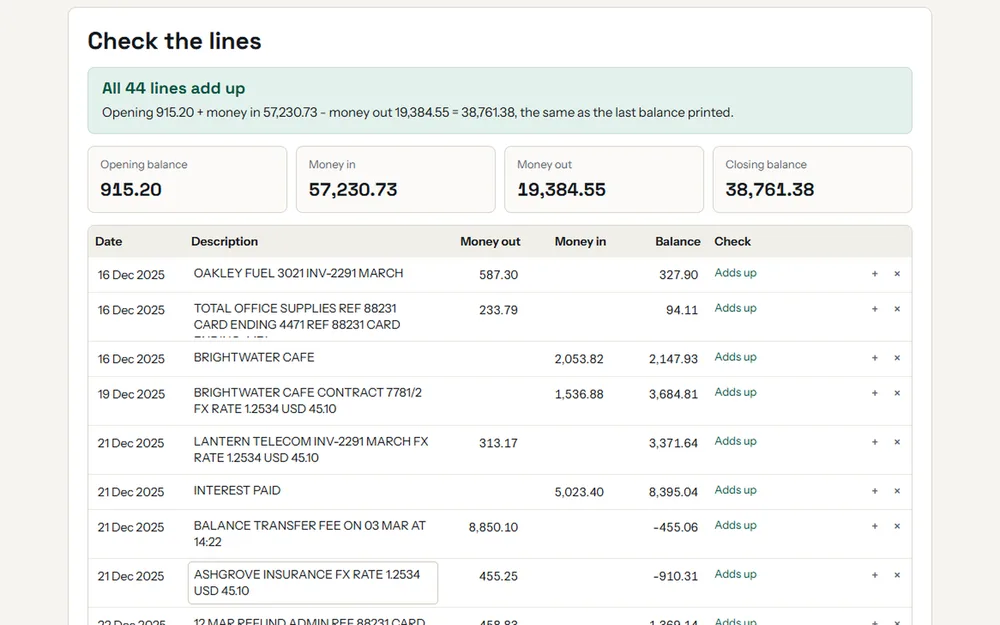
- Read the check. The opening balance plus each line must equal the balance printed on the statement, to the cent. A line that does not add up turns red, and no figure is changed for you.
- Fix a line if needed. Every date, description and amount can be edited in the table, and the check runs again after each edit.
- Download the CSV. The file is laid out the way Xero or QuickBooks Online asks for, and Excel opens it like any CSV.
What it looks like in PDF bank statement to CSV
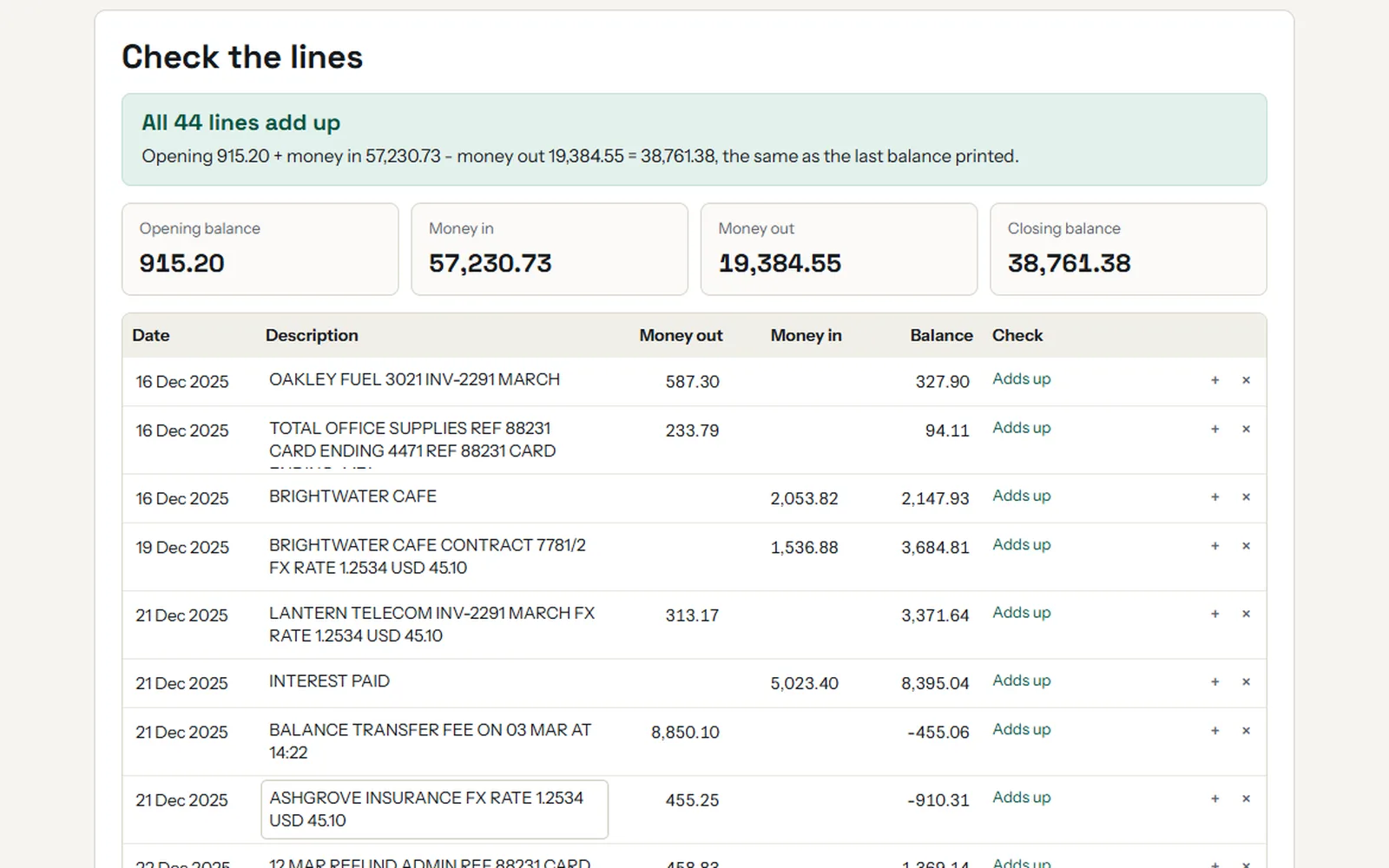
Limits. Scanned PDFs, photos and password-locked files are refused, not guessed at; there is no OCR. It has not been tested on the statements of every bank, and if yours does not add up, the page shows you where. Statements in other languages may not be recognised, and credit card statements were not part of the tests. It makes a CSV file, not an Excel workbook.
Price. Every line and the balance check are free on screen with no sign-up, and the first 20 lines download as CSV. To download every line, the 30-day pass is $19, one time, and does not renew; the monthly plan is $9 a month, cancel any time. Both also include the bank vs ledger compare tool. Prices are in US dollars before tax, and Paddle handles checkout and adds any applicable tax.
Which route fits
- Your bank offers CSV, OFX or QIF downloads: use those and skip the PDF.
- One clean statement to look at in a spreadsheet: Excel's From PDF import, with your own balance column.
- Statements for Xero or QuickBooks Online that must match the printed balances: the converter, then import the CSV.
Importing the result into your books: how to upload a PDF bank statement to Xero, converting a PDF bank statement to CSV for QuickBooks Online and the Xero bank statement CSV format and its import errors.
Atesen Software is independent. Excel and Power Query are trademarks of Microsoft, Xero is a trademark of Xero Limited and QuickBooks is a trademark of Intuit Inc.; this page is not affiliated with or endorsed by Microsoft, Xero or Intuit. The Microsoft articles were checked on 15 November 2026; menus and options can change.
Questions about this guide: support@atesensoftware.com.
Questions people ask
Can Excel open a PDF bank statement?
Yes. Select Data, Get Data, From File, From PDF, choose the file and pick the tables in the Navigator. It works for text-based PDFs, and the connector needs .NET Framework 4.5 or higher.
Why are my bank statement rows split in Excel?
A description that wraps onto a second line can be read as its own row. Microsoft's PDF connector reference suggests cleaning up multi-line rows in Power Query.
Can I convert a scanned bank statement to Excel?
Not with the From PDF import: a scan is a picture with no text, so there are no tables to find. Our converter refuses scans too, because it has no OCR.
Is the converter free?
Checking every line on screen is free with no sign-up, and the first 20 lines download as CSV. Every line costs $19 for a 30-day pass or $9 a month.
Does my statement get uploaded?
No. The converter opens and reads the PDF inside the web page. It is not uploaded, stored or logged.