Connects to Xero
Fix the tax on approved Xero bills in bulk
Xero has no bulk edit for the tax on bills. Draft and awaiting approval bills can be fixed in one run with Bill Tax Fixer. Approved bills are edited one at a time in Xero, or turned back into drafts first, fixed together and approved again. Most wrong bills come from Email to Bills or Hubdoc, which ignore the supplier's "Amounts are" default.
Connect Xero and preview, free
Why a batch of bills has the wrong tax
Xero keeps a purchases default for each contact: Contact, Edit, Bills defaults, Amounts are (tax exclusive, tax inclusive or no tax), and a default purchase account. Bills you type by hand use it.
Bills created from an emailed document or from Hubdoc are drafted by the capture step instead. It sets "Amounts are" from its own reading of the document and does not apply the contact's default, and it often leaves the account code empty when it cannot pick one. So a supplier you set to tax exclusive keeps sending tax inclusive drafts, and every total is off by the tax. Changing the contact default afterwards does not fix the bills already captured. The longer story, with the steps for one bill, is in how to make Xero emailed bills tax exclusive.
The fix depends on where the bills are now:
- Draft or Awaiting Approval. Still open. They can be fixed in bulk without touching their numbers.
- Approved (Awaiting Payment) with no payment. Xero lets you edit them, but one bill at a time.
- Paid or part paid. The payment has to come off before the bill can change; reconciled payments are a job for your accountant.
- In a locked period or a filed return. Talk to whoever files the return before you change anything there.
Xero's own steps for editing unpaid, awaiting payment and paid bills are in its Edit bills article (checked on 15 November 2026; menus can change).
How to fix the tax on a batch of bills
- Fix the supplier first. In the contact, set Bills defaults, Amounts are to what the supplier really sends, and pick a default purchase account. New bills you create by hand follow it, and the bulk fix below reads it.
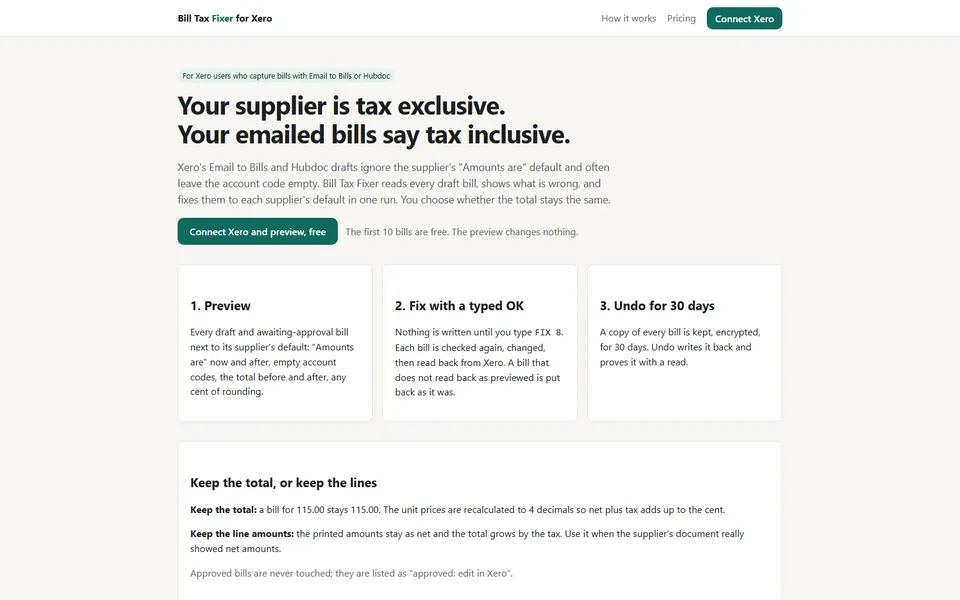
- Preview the open bills. Connect Bill Tax Fixer to Xero. It lists every draft and awaiting approval bill next to its supplier's default: "Amounts are" now and after, empty account codes, and the total before and after. The preview changes nothing.
- Choose what stays the same. Keep the total when the document total is right: a bill for 115.00 stays 115.00 and the unit prices are recalculated to 4 decimals. Keep the line amounts when the document really showed net amounts: the total grows by the tax.
- Fix them with a typed confirmation. Nothing is written until you type the confirmation. Each bill is checked again, changed and read back from Xero; one that does not read back as previewed is put back as it was.
- Bring approved bills back into reach. For a handful, edit each one in Xero. For many, turn them into drafts first: how to bulk unapprove invoices in Xero covers bills too. Then run step 2 again on the new drafts and approve them.
- Check the result. Run your sales tax, GST or VAT report for the period and compare the bill totals with the supplier documents.
Bill Tax Fixer, for the bulk fix
Bill Tax Fixer for Xero is a web app that fixes "Amounts are" and empty account codes on draft and awaiting approval bills, to each supplier's default, in one run.
- Free preview. Every open bill with its supplier's default, any cent of rounding shown before you confirm.
- Empty account codes. Lines without one get the supplier's default purchase account.
- Undo for 30 days. A copy of every bill is kept, encrypted, for 30 days. Undo writes it back and proves it with a read.
- Approved bills are never changed. They are listed as "approved: edit in Xero", so a bill you already approved is never rewritten behind your back.
It does not choose tax rates for you and gives no tax advice: it applies the setting you gave the supplier.
Disclosure. Atesen Software, which publishes this guide, makes Bill Tax Fixer. The steps above work without it, one bill at a time.
Price. The preview is free and the first 10 bills per organisation are fixed free, with no card. After that it is $15 a month per organisation for unlimited bills, or a 30-day pass for $29 once for a one-off backlog. An Unapprove plan includes Bill Tax Fixer for that organisation. Prices exclude VAT or sales tax, which Paddle adds at checkout. If you have not fixed a single bill, the first payment is refundable within 14 days.
Which route fits
- A few approved bills, no payment yet: edit each one in Xero.
- Many draft or awaiting approval bills: preview and fix them with Bill Tax Fixer.
- Many approved bills: Unapprove makes draft copies and voids the originals after a free preview, then fix the drafts.
- Bills that were entered twice: how to find duplicate invoices and bills in Xero.
- Bills with no receipt attached: how to find missing receipts in Xero.
Atesen Software is independent. Xero is a trademark of Xero Limited, and this page is not affiliated with or endorsed by Xero.
Questions about this guide: support@atesensoftware.com.
Questions people ask
Can I change the tax on many Xero bills at once?
Not inside Xero: each bill is edited on its own. Bill Tax Fixer changes "Amounts are" and empty account codes on every draft and awaiting approval bill in one run, after a free preview.
Why are my emailed bills tax inclusive when the supplier is tax exclusive?
Email to Bills and Hubdoc set "Amounts are" from the document and do not apply the contact's bills default, so the supplier setting is ignored for captured bills.
Can I edit an approved bill in Xero?
Yes, one at a time, while it has no payment. A paid bill needs its payment removed first, and a bill in a locked period stays locked.
Does Bill Tax Fixer change approved bills?
No. It lists them as "approved: edit in Xero". To fix many approved bills, turn them back into drafts first, then run the fix.