Connects to QuickBooks Online
Export QuickBooks Online attachments by transaction, not file by file
Attachment Bundler downloads QuickBooks Online attachments by transaction: filter by date, type, vendor or customer, account and amount, and get a ZIP where every file is named after its transaction, with a CSV and Excel index. Previews and the first 25 files are free, then a Year-end Pass from $29 (up to 250 files) or $19 a month. QuickBooks' own export only zips the files you tick.
Short answer: QuickBooks Online only exports attachments you pick by hand; Attachment Bundler filters by account and date and gives a ZIP with an Excel index.
Start free preview, no card QuickBooks' own export
Attachment Bundler is a web app by Atesen Software, the publisher of this guide. It only reads from QuickBooks Online and never changes your books.
What QuickBooks Online's built-in ZIP contains
Intuit's article Export your receipts, read on 26 November 2026, gives these steps for a bulk export:
- Open Settings and select Attachments under Lists.
- Select the checkboxes for the receipts you want.
- Open Batch actions and select Export.
- A ZIP file downloads with a folder of the receipts you selected.
So the ZIP holds the files you ticked, in one folder, and nothing else. The article describes no list of which transaction each file belongs to, no filter by account or date, and no note of transactions that have no file. It is free and already in QuickBooks. For a few files you can find by name, it is the right tool.
Why the built-in export is not enough for a year of receipts
- You pick files, not transactions. The Attachments list is a list of files. To export last year's bills for one vendor, you have to know which files belong to them.
- No filters described. Intuit's article mentions no filter or search by transaction date, vendor, account or amount.
- No naming or index described. The article does not say how the files in the ZIP are named, and gives no list that ties each file to its transaction.
- No sign of what is missing. A list of files cannot show a transaction that has no file attached, which is the first thing an auditor asks about.
| The job | Settings, Attachments, Export | Attachment Bundler |
|---|---|---|
| Every bill and expense receipt for 2025 | Tick each file that belongs to them | Date range plus transaction type |
| One vendor, one account or an amount range | No filter described | Vendor or customer, one or more accounts, minimum and maximum amount |
| File names | Not described | Date, name, amount and number, such as 2025-03-14_Acme Supplies_1250.00_B-1043.pdf, or your own template |
| Index | None described | CSV and Excel index of every file, its path and its transaction |
| Transactions with no receipt | Not shown | Counted in the preview and listed in the index |
| Price | Included in QuickBooks Online | 25 files per company free, then $29 to $199 once, or $19 a month |
How to download all attachments by transaction with Attachment Bundler
- Connect the company. Sign in with Intuit and choose the QuickBooks Online company. The app sends only read requests.
- Set the filter. Pick the date range and transaction types (bills, expenses, invoices, sales receipts and journal entries), then a vendor, customer, account or amount range if you need one.
- Read the preview. It counts the matching transactions, the files and megabytes, and the transactions that have no attachment. Previews are free and unlimited.
- Choose names and folders. Keep the default file name or write your own template, and sort into folders by type and month, by vendor or customer, or flat.
- Download the ZIP. Large exports are split into ZIP parts, each with its own index, and any part can be downloaded again.
What it looks like in Attachment Bundler
Price. Previews and the first 25 files per company are free, with no card. The Year-end Pass is one payment for 30 days and up to 10 companies: $29 up to 250 different files, $49 up to 1,000, $99 up to 5,000, $199 above that. Monthly is $19 for up to 250 different files a month. FOUNDING40 takes 40% off the $29 Pass or the first Monthly payment until 30 November 2026. Full refund within 14 days of your first purchase (pricing page).
Limits. Vendor credits, bill payments, deposits, estimates and purchase orders are not included, and QuickBooks Desktop is not supported. It is not a backup service. It is not listed in Intuit's app store, and because Intuit offers no read-only permission, sign-in asks for its single accounting permission.
Choose the account and the transaction types
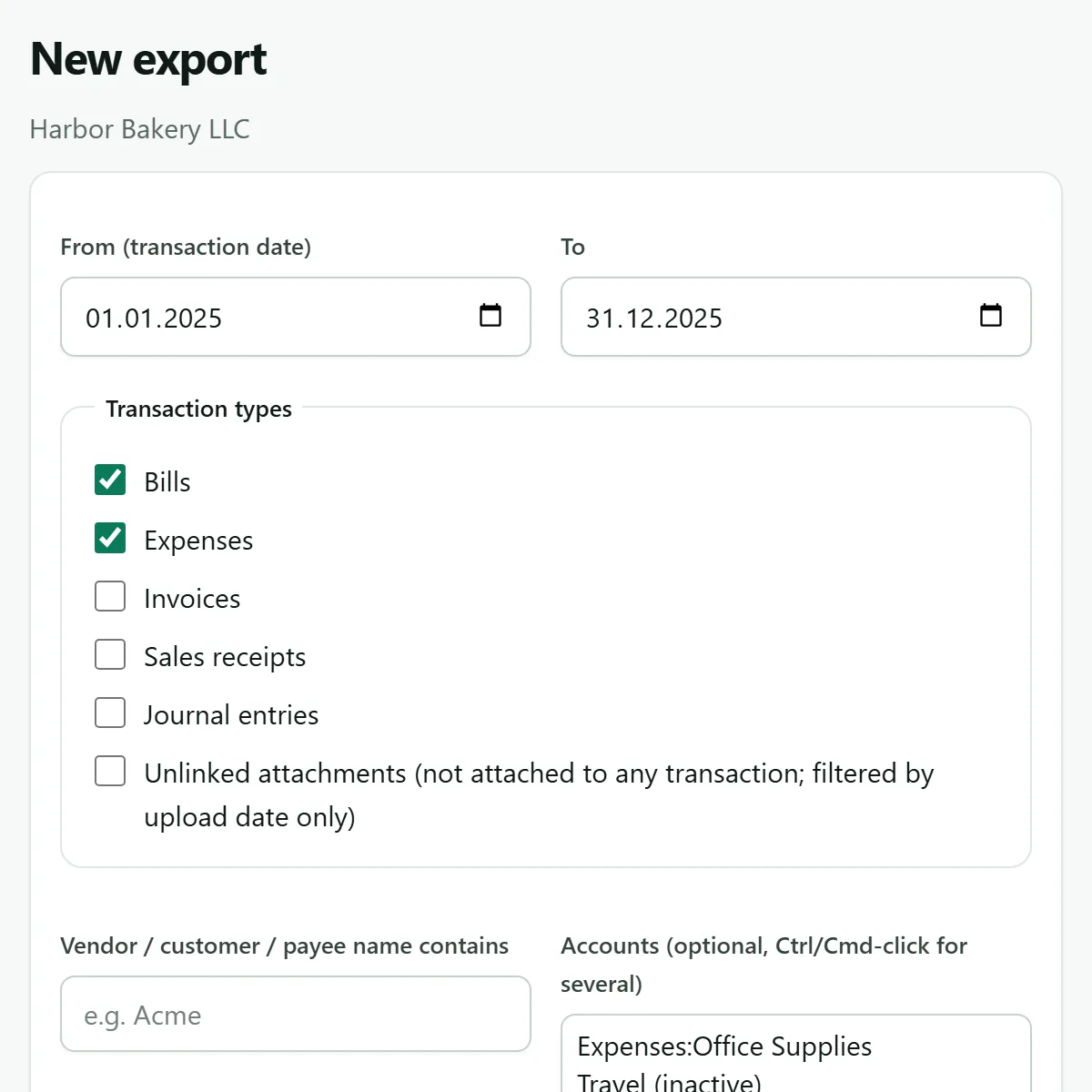
Start with the transaction types: bills, expenses, invoices, sales receipts and journal entries. The default is bills and expenses, the usual set for a receipt request. Then pick one or more accounts from the company's chart of accounts in the Accounts list, up to 50. Leave it empty to include every account.
- How a transaction matches. A transaction is included when any of its accounts is one you picked. That covers the account on the transaction itself (the payment account of an expense, the Accounts Payable account of a bill, the deposit-to account of a sales receipt) and the account on each category line of a bill or expense, each journal entry line and each deposit line.
- Pick the expense or bank account, not Accounts Payable. Bills usually carry Accounts Payable, so choosing it can match nearly all of them. For "every receipt booked to Office Supplies", choose Office Supplies. For "everything paid from the business card", choose the card account.
- Product and service lines. Lines that use a product or service are not matched by the account behind that item, only by the accounts on the transaction itself. If your bills use items, filter by vendor instead.
Set the date filter
The From and To dates are compared with the transaction date in QuickBooks, not the date a file was uploaded, and both days are included. The form starts with last calendar year, 1 January to 31 December, which is the usual year-end or audit request. A range can be up to about 10 years.
Attachments that are not linked to any transaction can be added with the Unlinked attachments option. They have no transaction date, so only their upload date is checked against the range.
Check the file count and missing receipts before you download
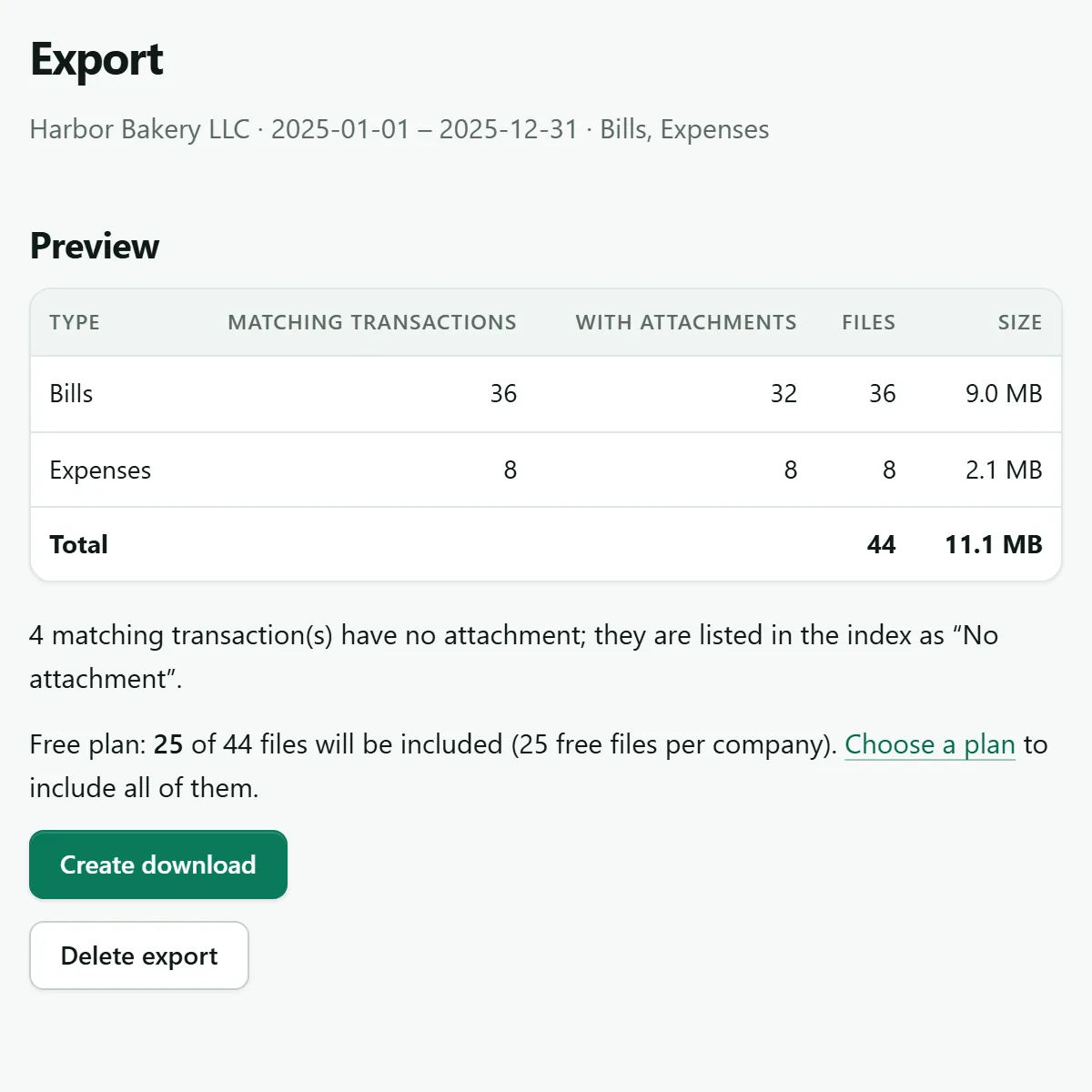
Nothing is downloaded when you press Preview. The preview table shows, for each transaction type, the matching transactions, how many of them have attachments, the number of files and their size, with a total. Below it, a line counts the matching transactions that have no attachment. These are your missing receipts, inside the account and dates you chose.
On the free plan the preview also says how many of the files are included, such as 25 of 44. If the count is far from what you expected, change the account, the types or the dates and preview again. Previews are free and unlimited.
Match the ZIP to transactions with the Excel index
Every ZIP part has an _index folder with the same index twice: part-001-of-001.xlsx for Excel and a CSV copy. One row per file, and the header row stays frozen when you scroll. The columns are:
- File path: where the file sits in the ZIP, under the folders you chose.
- Status: Downloaded, Included, Failed (with the reason), Not included (free plan limit), or No attachment for a matching transaction with no file.
- Transaction type, Transaction date, Number, Name (vendor/customer/payee), Amount, Currency, Payment type and Transaction ID: the transaction the file belongs to.
- Original file name, Attachment ID, Content type, Size (bytes), Category and Upload date: the file as QuickBooks stores it.
To tick off receipts, open the .xlsx, filter Status for No attachment to get the list to chase, and sort by Number or Transaction ID to compare with a QuickBooks report. The index has no account column: the account filter has already decided which transactions are in it, so one export per account gives one index per account.
Questions people ask
Can QuickBooks Online export all attachments at once?
It exports the attachments you tick: Settings, Attachments under Lists, select the files, then Batch actions and Export, and a ZIP downloads. Intuit's article describes no filter by transaction, no file naming and no index.
How do I download all attachments for a date range or one vendor in QuickBooks Online?
Use Attachment Bundler. Filter by transaction date, type, vendor or customer, account and amount, check the free count, then download a ZIP named by transaction with a CSV and Excel index. The first 25 files are free, then a Year-end Pass from $29.
How do I export QuickBooks Online attachments for one account and date range?
QuickBooks Online only exports attachments you pick by hand. In Attachment Bundler, set the From and To transaction dates, choose the transaction types and the account, check the preview count, and download a ZIP with an Excel index of every file and its transaction.
How do I match the files in the ZIP to their transactions?
Open the .xlsx in the ZIP's _index folder. Each row gives the file path and its transaction's type, date, number, name, amount and QuickBooks transaction ID, and rows marked No attachment are the transactions still missing a receipt.
Does the QuickBooks Online export name files after their transactions?
Intuit's article does not say how the exported files are named. Attachment Bundler names each file by date, name, amount and number, or by your own template.
How do I find QuickBooks Online transactions with no receipt attached?
The Attachments list only shows files. Attachment Bundler's preview counts the matching transactions with no attachment, and its index lists them so you can chase the missing receipts.
Does a QuickBooks Online data export include attachments?
Intuit describes exporting reports and lists to Excel, and attachments through Settings, Attachments. To get the attachments together with the transactions they belong to, use an app that reads both, such as Attachment Bundler or a backup service.
Sources, read on 26 November 2026: Intuit, Export your receipts; Attachment Bundler pricing.
More: built-in ZIP vs BoxKite vs Attachment Bundler, download all attachments and receipts from QuickBooks Online, find transactions with missing receipts and Attachment Bundler in our catalogue.
Atesen Software is independent. QuickBooks and Intuit are trademarks of Intuit Inc., and this page is not affiliated with, sponsored or endorsed by Intuit Inc. Menus and options can change.
Questions about this guide: support@atesensoftware.com.